
Configuring Shopify Theme for LoyaltyTree
Enable loyalty widgets and checkout extensions in your Shopify theme. Learn how to activate app embeds and configure widget visibility settings.
Configuring Shopify Theme for LoyaltyTree
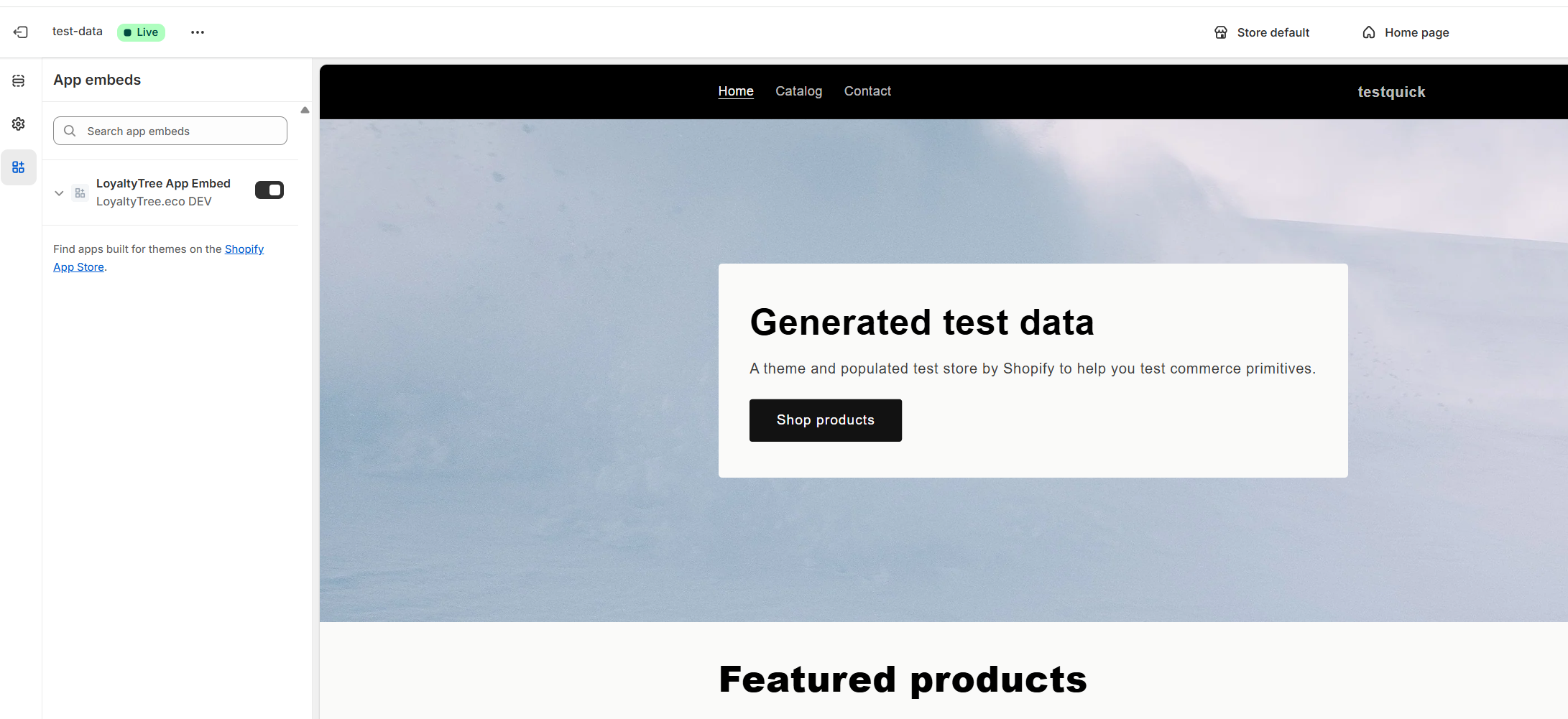
Enable LoyaltyTree app embeds in your Shopify theme customization
Enable loyalty widgets and checkout extensions in your Shopify theme to display rewards to customers.
Overview
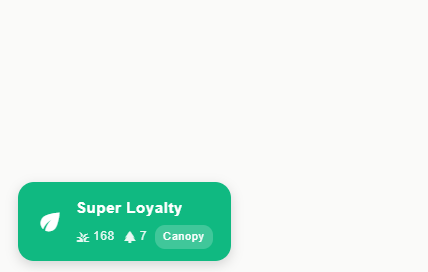
Navigation widget integrated into your storefront
LoyaltyTree provides two main integration points in your Shopify theme:
- App Embeds: Loyalty widgets that appear on your storefront pages
- Checkout UI Extension: Tree/eco-product sponsorship at checkout
Enabling App Embeds
Step 1: Access Theme Customization
In your Shopify admin, go to Online Store → Themes and click Customize on your active theme.
Step 2: Open App Embeds Panel
In the theme editor, click the theme settings icon (usually in the left sidebar), then scroll down to find the App embeds section.
Step 3: Enable LoyaltyTree Widget
Find "LoyaltyTree - Loyalty Widgets" in the list and toggle it ON. This enables the loyalty widget system across your store.
Step 4: Save Changes
Click Save in the top-right corner to publish your changes.
Verifying Widget Display
After enabling the app embed, visit your storefront. The loyalty widget should appear based on your configuration in the LoyaltyTree admin (typically bottom-right corner).
Enabling Checkout Extension
Automatic Activation
The LoyaltyTree checkout extension requires you to enable our app in the Extension theme. It will only work on PLUS or legacy Basic plans. Our consumer sponsoring will work on the cart view at all subscription levels, but for the final checkout page to feature our Consumer Sponsoring you will need to enable in the theme also.
Troubleshooting
- Widget not appearing: Verify app embed is enabled and saved in theme settings
- Checkout extension missing: Ensure consumer sponsorship is enabled in LoyaltyTree settings
Next Steps
Once your theme is configured, proceed to customize widget colors and styling to match your brand.