
Reviews Feature Setup
Collect authentic customer reviews with AI-powered moderation, customizable product displays, and automated review request campaigns.
Reviews Feature Setup
Collect authentic customer reviews with AI-powered moderation, customizable product displays, and automated review request campaigns to build trust and boost conversions.
Overview
The LoyaltyTree Reviews feature provides:
- Customer product reviews with star ratings, photos, and detailed feedback
- AI-powered moderation for sentiment analysis, safety checks, and authenticity scoring
- Customizable review widgets for product pages with star ratings and review counts
- Review request campaigns to automatically collect reviews after purchases
- Multi-language support with AI translation for international stores
- Customer moderation workflow with edit/resubmit capabilities
Step 1: Access the Reviews Configuration
The Reviews feature is accessed directly from your store card.
To access Reviews:
- Navigate to Stores in your LoyaltyTree admin
- Find your store card
- Click the Reviews button on the store card
This opens the Reviews management area where you can configure all review settings, customize the display experience, and manage review campaigns.
Step 2: Review System Settings
The Settings tab contains all functional controls for your review system.
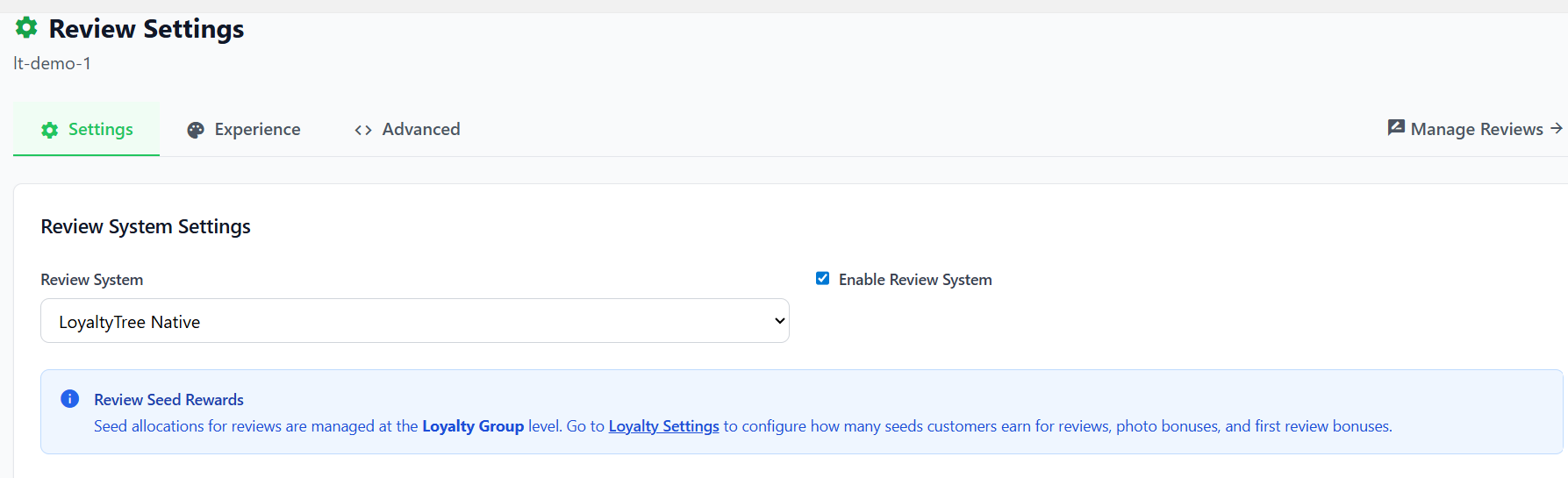
Review System Mode
- Review System: Select your preferred review provider. Choose LoyaltyTree Native to use our built-in review system with AI moderation, or External Platform to integrate with third-party review apps.
- Enable Review System: Toggle this to turn the entire reviews feature on or off for your store.
AI Moderation
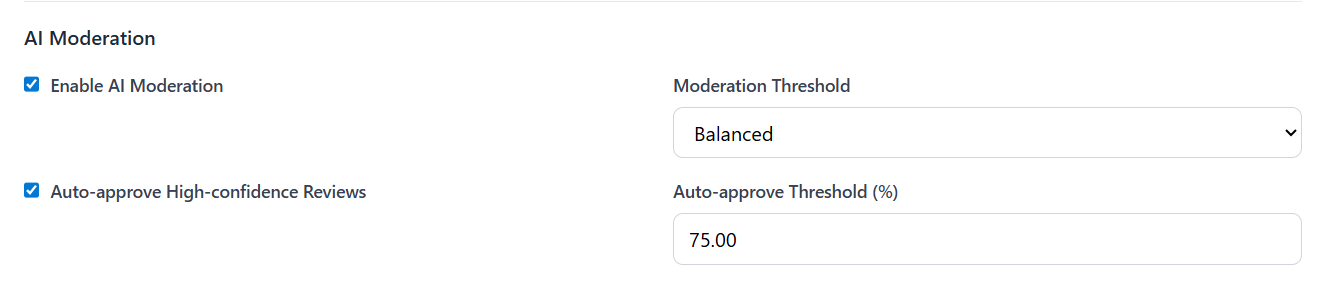
- Enable AI Moderation: When enabled, our AI automatically analyzes every review for sentiment, safety, and authenticity.
- Moderation Threshold: Choose between Strict, Balanced, or Lenient. This controls how sensitive the AI is when flagging reviews for manual approval.
- Auto-approve High-confidence Reviews: Enable this to allow the AI to automatically publish reviews that it identifies as highly positive and safe.
- Auto-approve Threshold (%): Set the confidence percentage required for auto-approval (e.g., 75%).
Review Options
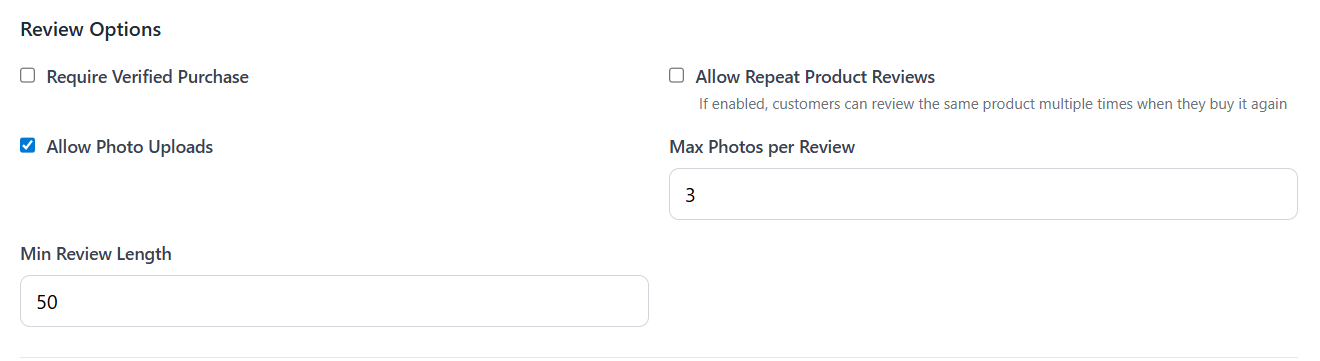
- Require Verified Purchase: Restrict review submissions to only those customers who have a confirmed purchase of the product in your store.
- Allow Repeat Product Reviews: If enabled, customers can review the same product multiple times if they purchase it again in separate orders.
- Allow Photo Uploads: Let customers attach photos to their reviews to provide social proof.
- Max Photos per Review: Limit the number of photos a customer can upload (e.g., 3).
- Min Review Length: Set a minimum character count to ensure high-quality, descriptive feedback (e.g., 50 characters).
Review Editing Permissions
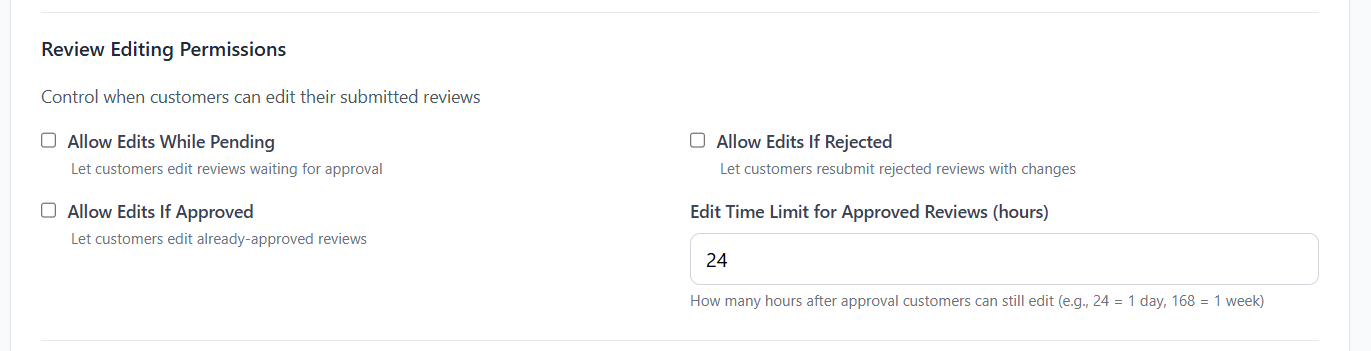
- Allow Edits While Pending: Let customers modify their review while it is still waiting for moderation.
- Allow Edits If Rejected: Give customers a second chance by letting them fix and resubmit a rejected review.
- Allow Edits If Approved: Let customers update their review even after it has been published.
- Edit Time Limit (hours): Set a window for how long customers can edit their approved reviews (e.g., 24 hours = 1 day, 168 hours = 1 week).
Optional Review Form Fields

- Eco-Friendliness Rating: Ask customers specifically to rate how eco-friendly the product or packaging is.
- Packaging Feedback: Collect specific feedback on packaging (Minimal, Recyclable, Excessive, etc.).
- Would Recommend: Add a simple toggle for customers to indicate if they would recommend the product to others.
Review Request Emails
This controls the reminders that customers get to create a review.
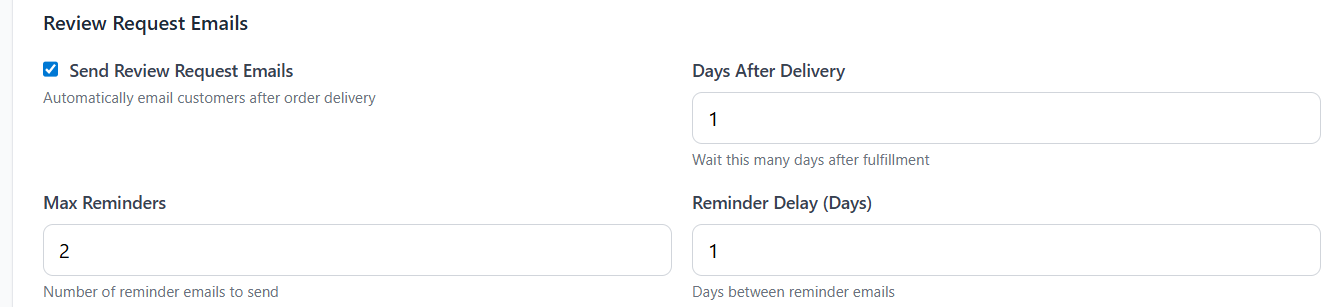
- Days After Delivery: When to send initial email.
- Max Reminders: How many reminders to send.
- Reminder Delay: Days Between Each Reminder
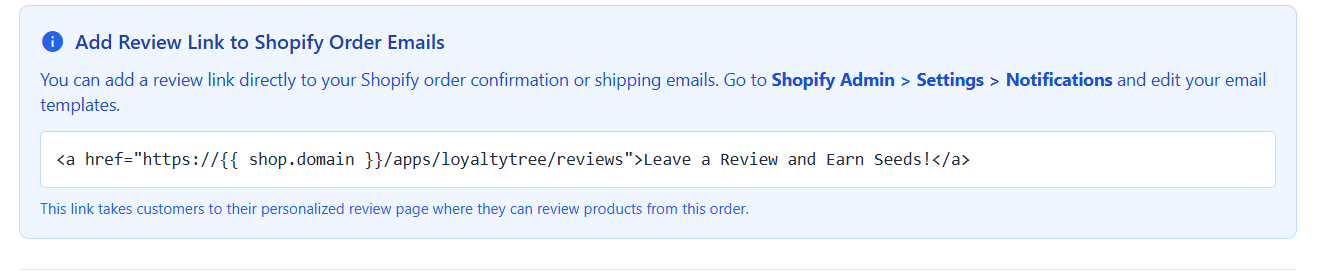
Instructions on how to add review link to the normal Order Email
Step 3: Reviews Experience Builder
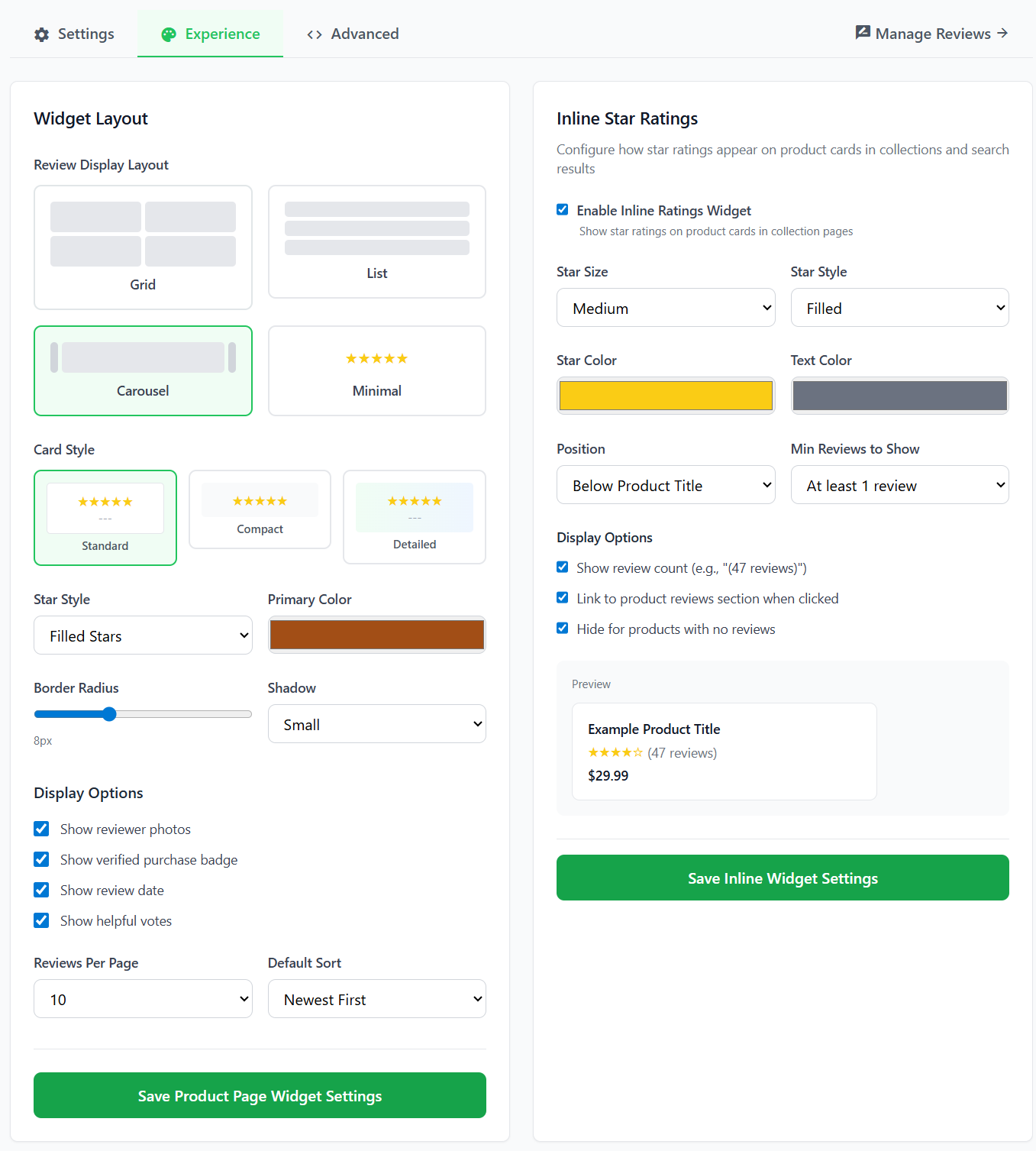
The Experience Builder lets you customize how product reviews and star ratings appear on your storefront.
Product Reviews Display
Configure how the full reviews section appears on product pages:
- Layout style: Choose between grid, list, or carousel layouts
- Card template: Select how individual review cards are displayed
- Reviews per page: Set how many reviews to show before pagination
- Sort options: Configure default sorting (newest, highest rated, most helpful)
- Photo display: Enable/disable customer photo previews
- Verified badge: Show verified purchase indicators
Review Count Widget
Configure the star rating and review count that appears near the product title:
- Star style: Filled, outlined, or custom icons
- Display format: "4.5 (123 reviews)" or "4.5 stars • 123 reviews"
- Link behavior: Scroll to reviews section when clicked
- Empty state: What to show when no reviews exist
Styling Options
- Colors: Match your theme's primary/secondary colors
- Fonts: Inherit from theme or set custom
- Spacing: Adjust padding and margins
- Mobile layout: Responsive configuration for smaller screens
Step 4: Advanced Mode
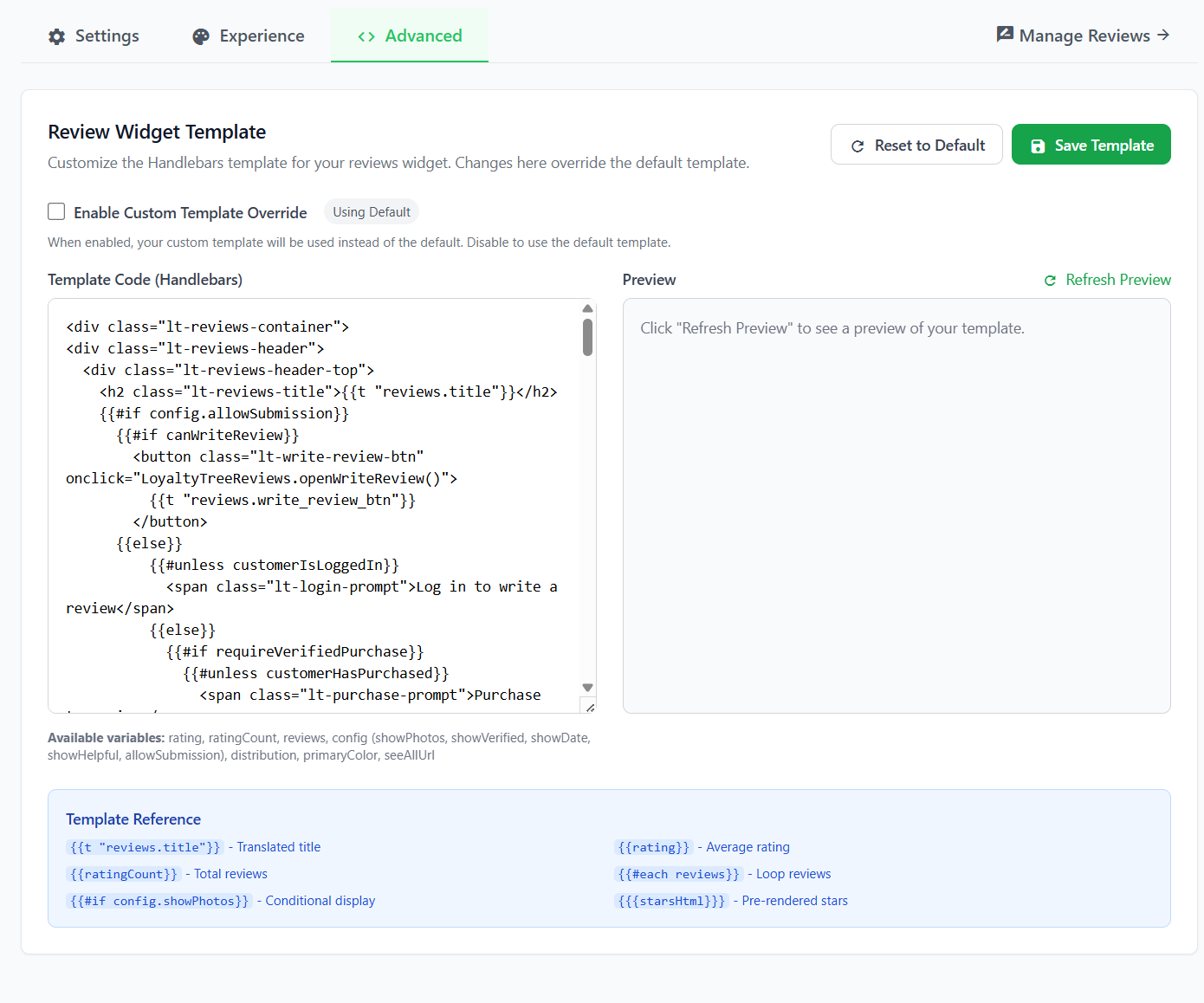
For complete control over your review display, use Advanced Mode to edit the full Handlebars template.
Accessing Advanced Mode:
- In the Reviews Experience Builder, click the Advanced tab
- The full Handlebars template appears in the code editor
- Edit the HTML/CSS/Handlebars code directly
- Use the preview panel to see changes in real-time
- Click Save when finished
Available Template Variables:
| Variable | Description |
|---|---|
{{reviews}} |
Array of review objects |
{{averageRating}} |
Product's average star rating |
{{totalReviews}} |
Total number of approved reviews |
{{review.customerName}} |
Customer display name (e.g., "John D.") |
{{review.rating}} |
Star rating (1-5) |
{{review.title}} |
Review title/headline |
{{review.content}} |
Review body text |
{{review.photos}} |
Array of customer-uploaded photos |
{{review.verifiedPurchase}} |
Boolean for verified buyer status |
{{review.createdAt}} |
Review submission date |
Warning: Changes in Advanced Mode override Experience Builder settings. Switch back to the Settings tab to use the visual editor again.
Seed Rewards for Reviews
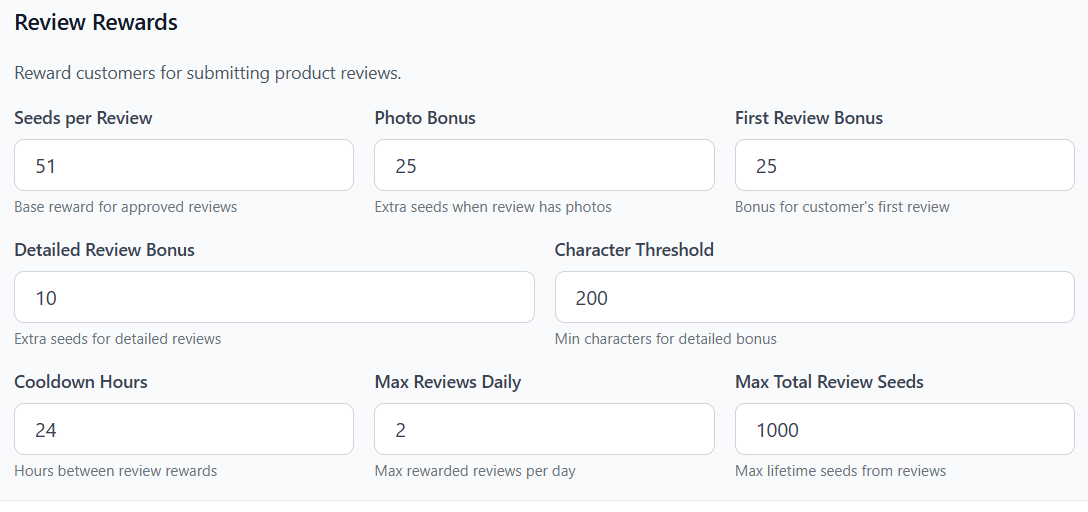
Note: Seed allocations for reviews are managed at the Loyalty Group level. Go to your store's Loyalty Settings → Seed Settings to configure how many seeds customers earn for reviews, photo bonuses, and first review bonuses.
Step 5: Add Review Widgets to Your Theme
Add the review display blocks to your Shopify theme to show reviews on product pages.
Adding the Product Reviews Block:
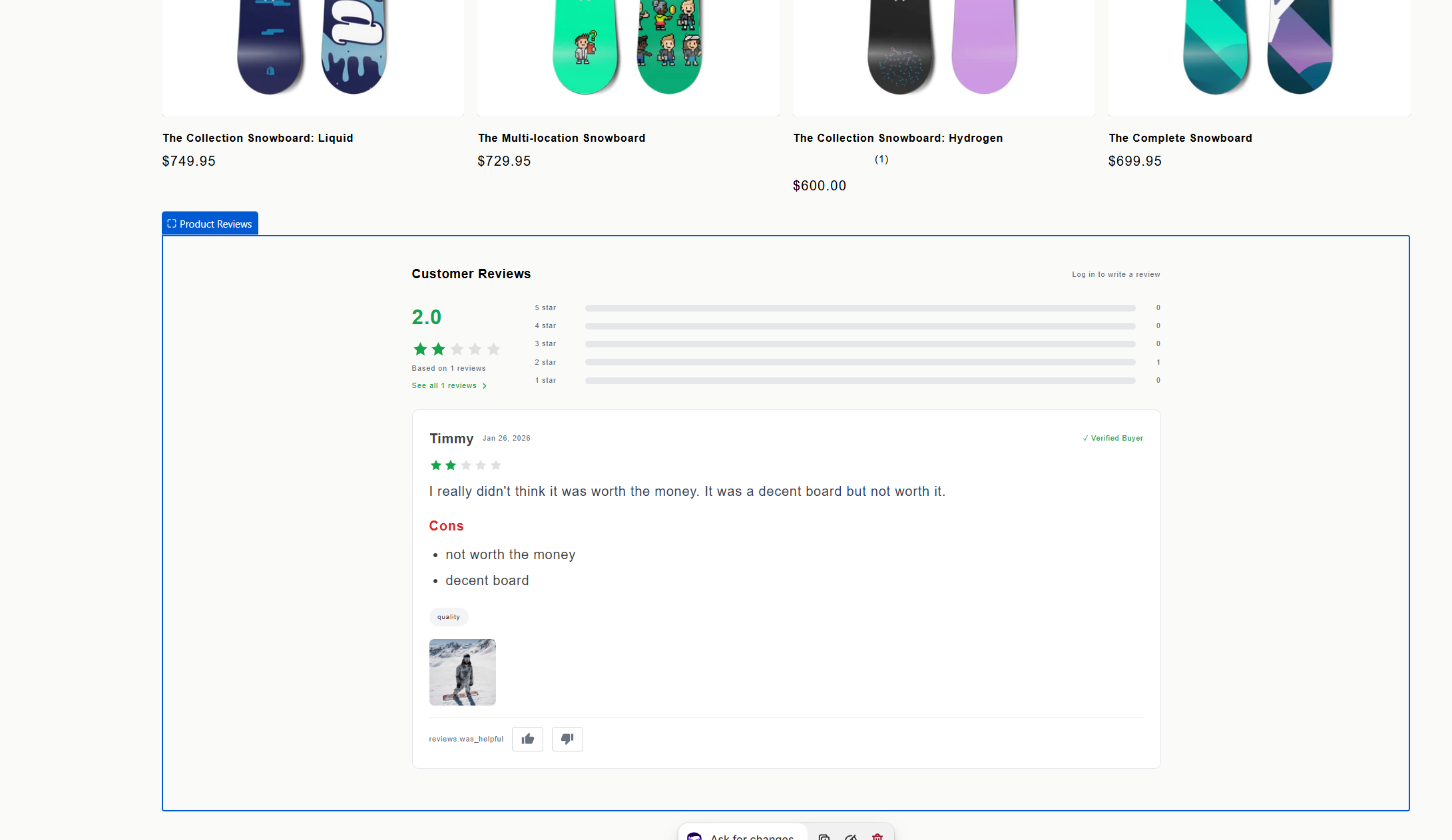
- Go to Shopify Admin → Online Store → Themes
- Click Customize on your active theme
- Navigate to a Product page
- In the sidebar, click Add section or Add block
- Search for LoyaltyTree Product Reviews
- Position it where you want reviews to appear (typically below product recommendations)
- Click Save
Adding the Star Rating/Count Widget:
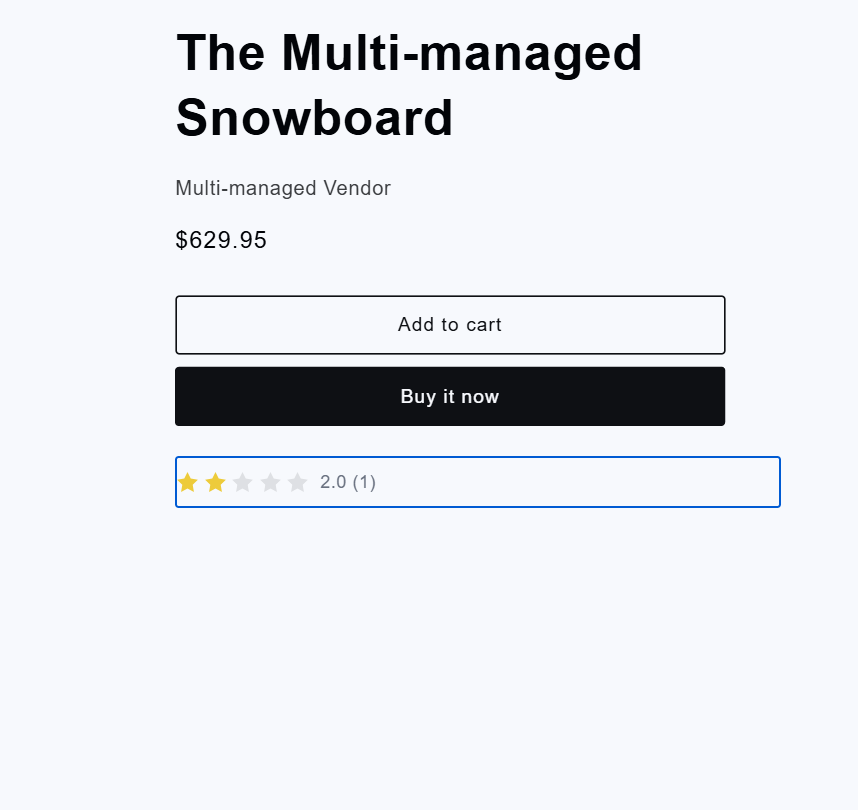
- In the same theme editor, find the Product information section
- Click Add block
- Search for LoyaltyTree Review Count
- Drag it near the product title or price
- Click Save
Step 6: Review Moderation
All reviews go through moderation before appearing on your store. LoyaltyTree uses AI to help you moderate efficiently.
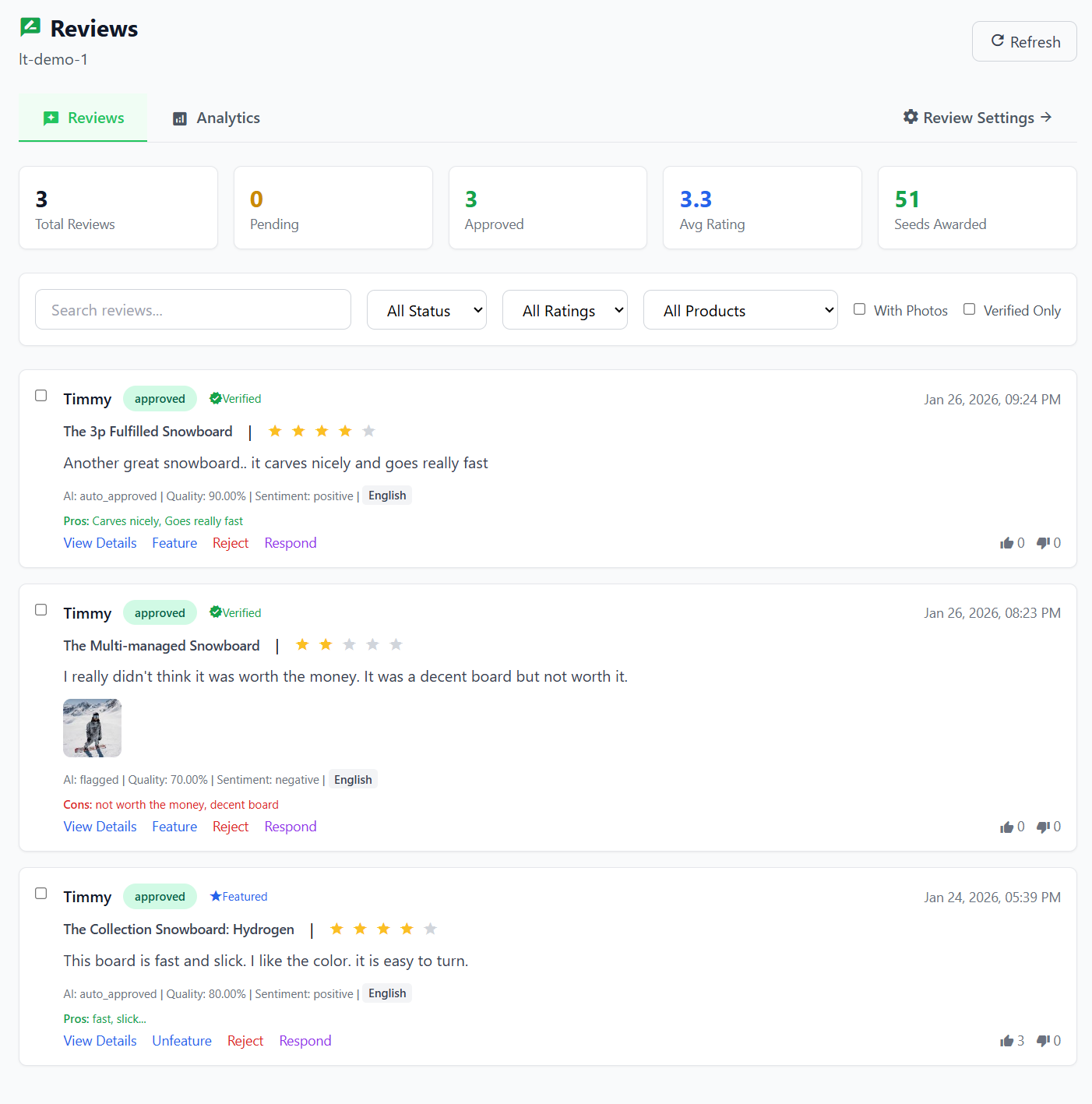
AI-Powered Analysis:
Each review is automatically analyzed for:
- Sentiment: Positive, negative, or neutral tone
- Safety: Flags inappropriate language or content
- Authenticity: Detects potential fake or spam reviews
- Pros/Cons: Automatically extracts key points
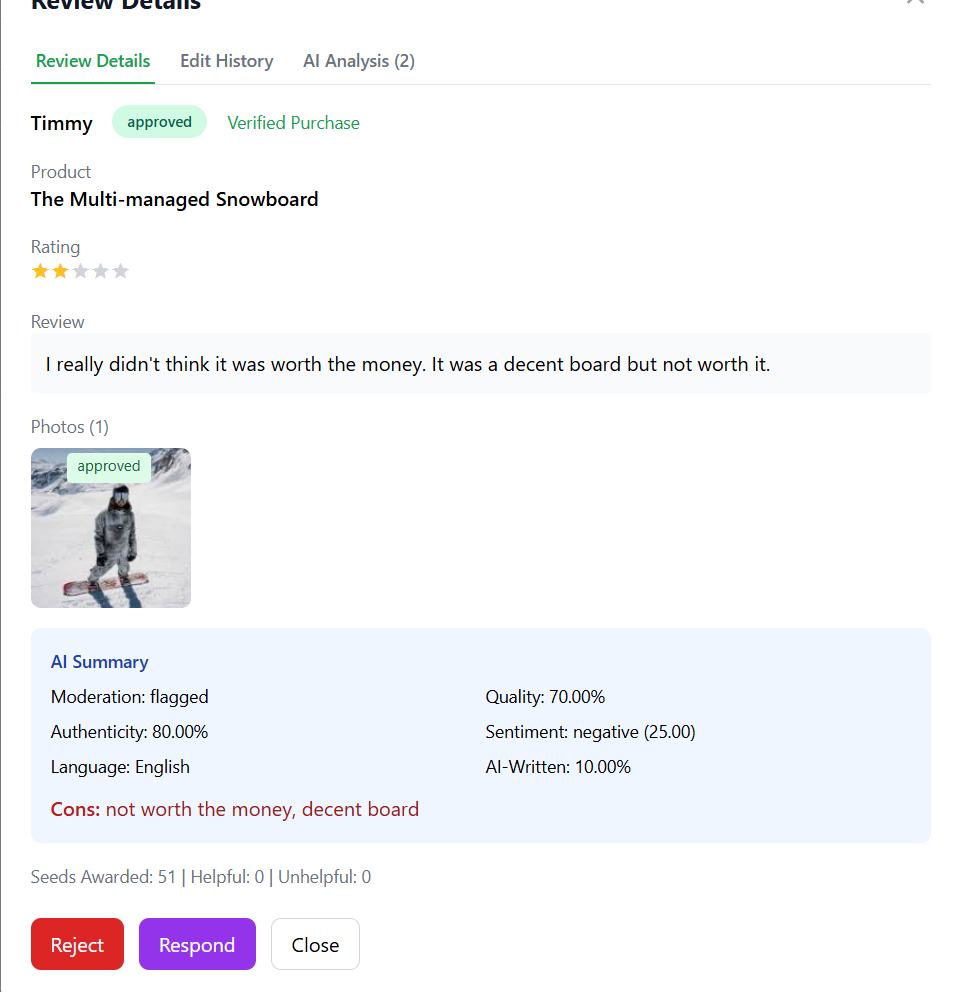
Moderation Actions:
| Action | Description |
|---|---|
| Approve | Publish the review on your store |
| Reject | Decline with a reason (customer can edit and resubmit) |
| Request Edit | Ask customer to modify specific parts |
Rejection Reasons:
When rejecting a review, provide a clear reason so customers understand:
- Contains inappropriate language
- Off-topic or not about the product
- Suspected spam or fake review
- Contains personal information
- Custom reason (you write the explanation)
Customers receive notification of rejection and can edit their review to address issues, then resubmit for approval.
Step 7: Customer Review Experience
Customers can manage their reviews through their Impact Dashboard.
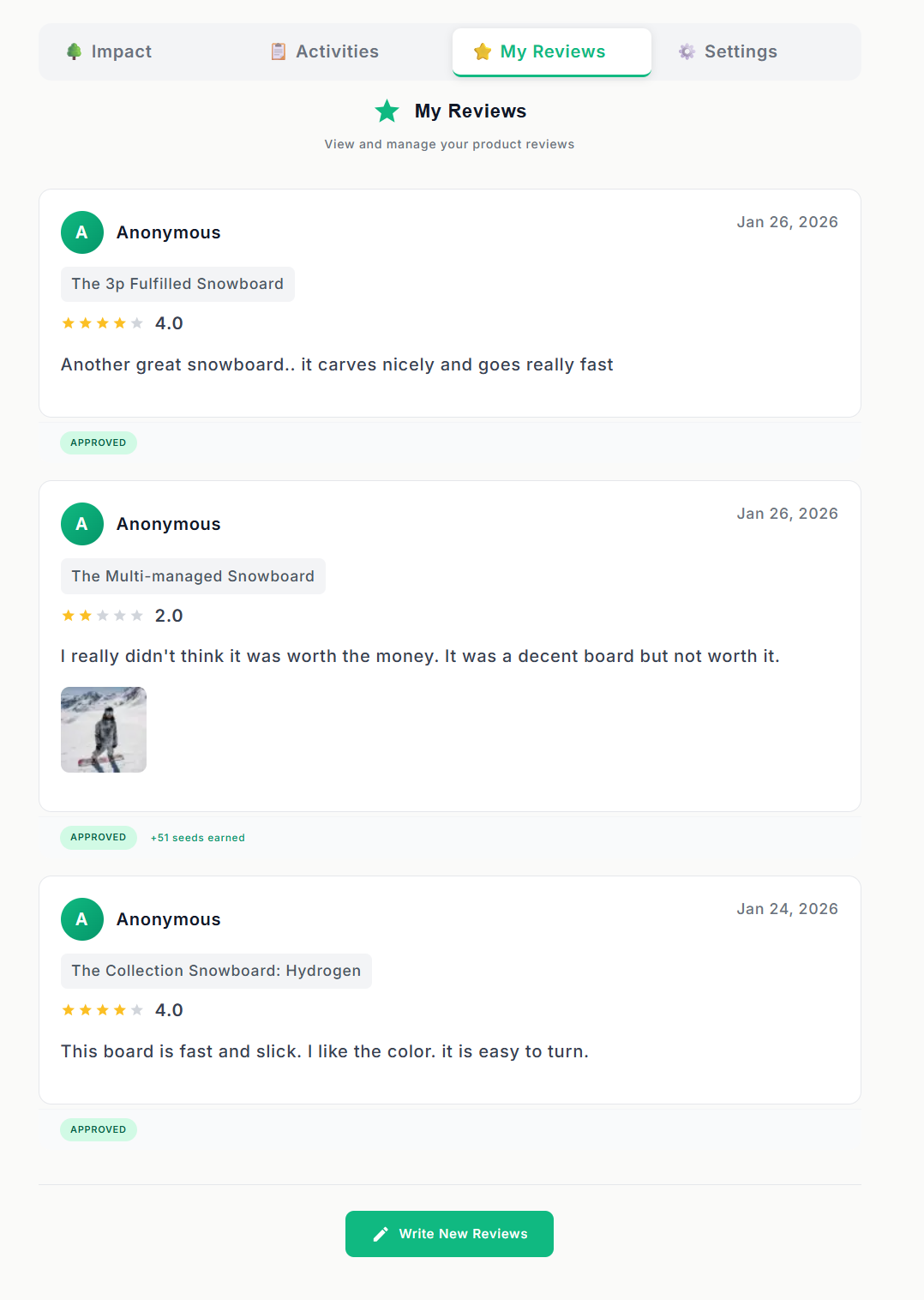
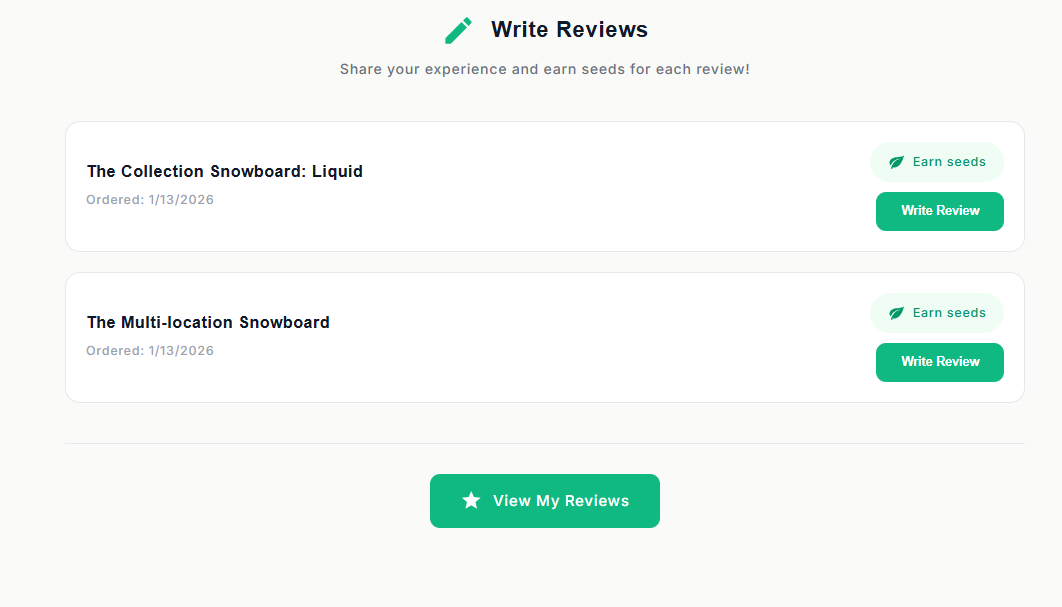
Writing Reviews:
Customers can write reviews from:
- Review request emails: Click the review request link
- Order Status page: "Write a Review" button after fulfillment
- Impact Dashboard → My Reviews: Review past purchases
- Product page: "Write a Review" button (if enabled)
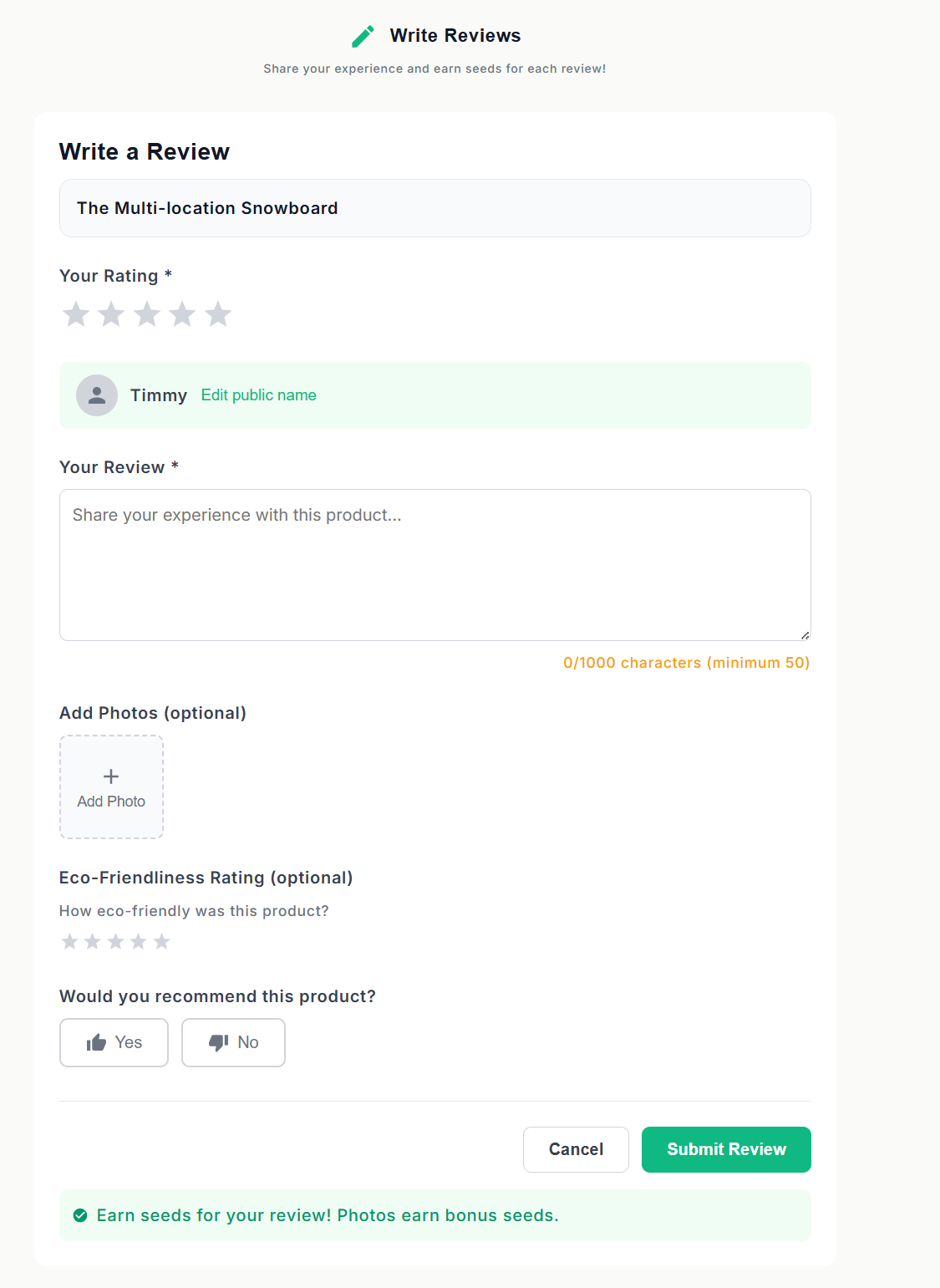
Review Features for Customers:
- Star rating: 1-5 stars required
- Title and body: Share detailed feedback
- Photo uploads: Add product photos
- Edit capability: Modify pending or rejected reviews
- Status tracking: See if review is pending, approved, or rejected
- Rejection feedback: View why a review was rejected with option to edit
Review Voting:
Registered customers can vote on reviews to indicate helpfulness. Only logged-in customers can vote, preventing spam votes.
Multi-Language Reviews
For international stores, LoyaltyTree supports reviews in multiple languages:
- AI language detection: Automatically detects review language
- On-demand translation: Translate reviews for moderation
- Customer view: Show reviews in their preferred language
- Configurable limits: Set maximum review length per language
Best Practices
- Respond to reviews: Engage with customers, especially negative feedback
- Time your requests: Wait until customers receive and use the product
- Encourage photos: Offer bonus seeds for photo reviews
- Be fair with moderation: Don't reject legitimate negative reviews
- Use AI insights: Let AI flag issues while you make final decisions
- Monitor metrics: Track review submission rates and conversion impact
Need Help?
Contact our support team at support@loyaltytree.eco for assistance with reviews configuration.
For connecting external review platforms like Judge.me, Loox, or Yotpo, see our separate guide: External Review Platform Integration.