
Share & Referral Feature Setup
Enable social sharing and referral tracking to grow your customer base while rewarding loyal customers.
📤 Share & Referral Feature Setup
Enable social sharing and referral tracking to grow your customer base while rewarding loyal customers for spreading the word about your store.
Overview
The Share & Referral feature allows your customers to:
- Share products and your store on social media (Facebook, Twitter/X, WhatsApp, LinkedIn, etc.)
- Use direct sharing via copy link, email, or SMS
- Earn seeds when their shares are validated or when friends make purchases
- Track their impact through referral conversions
You can configure different sharing channels for your Impact Dashboard pages versus product pages, giving you full control over the customer experience.
Step 1: Configure Share Channels
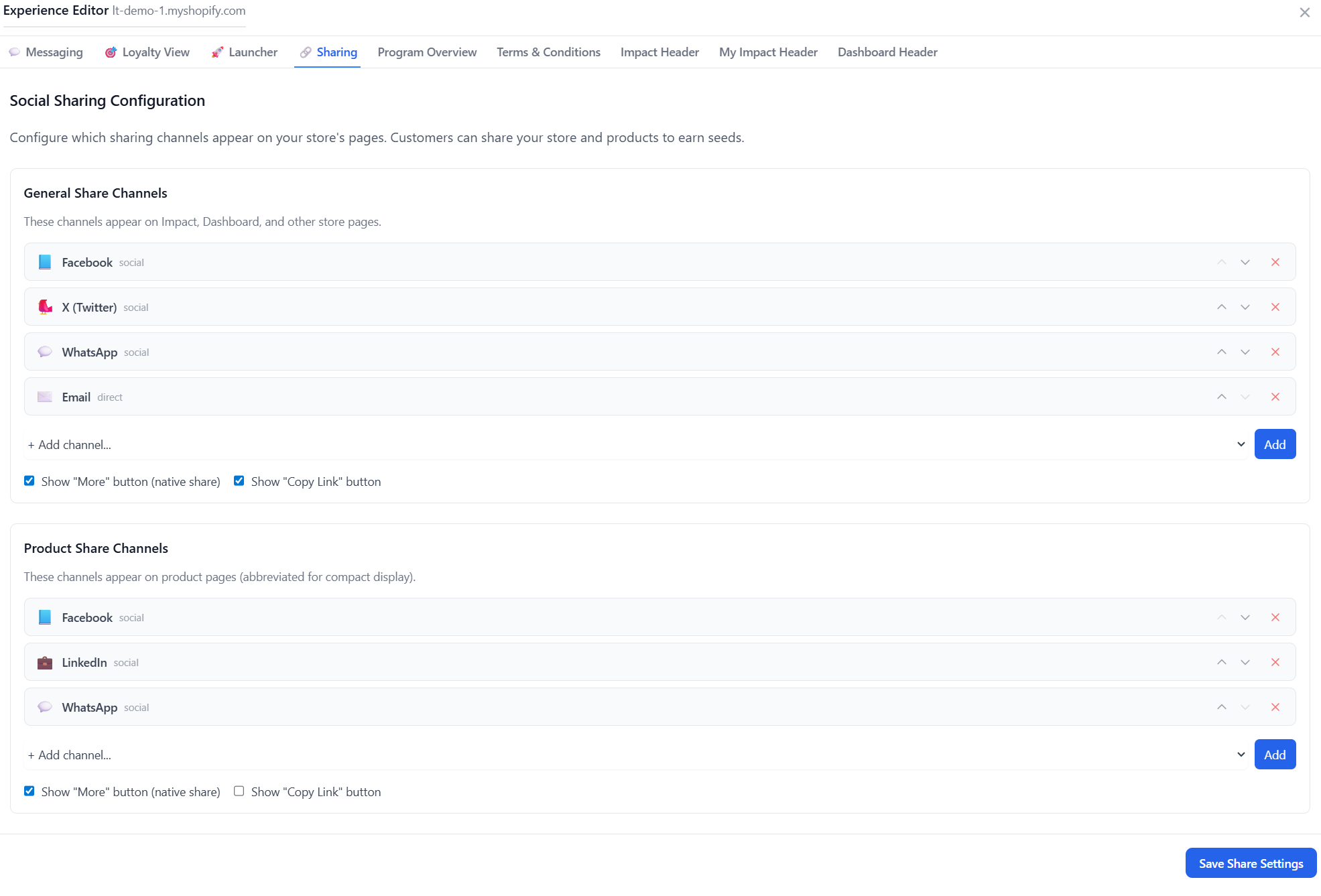
Navigate to Stores → [Your Store] → Experience Editor → Sharing tab to configure which sharing options appear on your store.
General Share Channels
These channels appear on your Impact Dashboard, Activities, and other store pages:
- Social channels: Facebook, X (Twitter), WhatsApp, LinkedIn, Pinterest
- Direct channels: Email, Copy Link, SMS
Product Share Channels
These channels appear on product pages in a compact format. You can configure different channels for products if you want a streamlined experience.
Additional Options
- Show "More" button (native share): Enables the device's native share menu for additional options
- Show "Copy Link" button: Adds a quick copy-to-clipboard button
Click Save Share Settings when you're done configuring.
Step 2: Add Share Widget to Your Theme
To display the product share widget on your product pages, you need to add the LoyaltyTree Product Share block in your Shopify theme editor.
Adding the Product Share Block:
- Go to your Shopify Admin → Online Store → Themes
- Click Customize on your active theme
- Navigate to a Product page using the page selector
- In the left sidebar under Template → Product information, click Add block
- Search for and select LoyaltyTree Product Share
- Drag the block to your desired position (recommended: near the buy buttons)
- Click Save
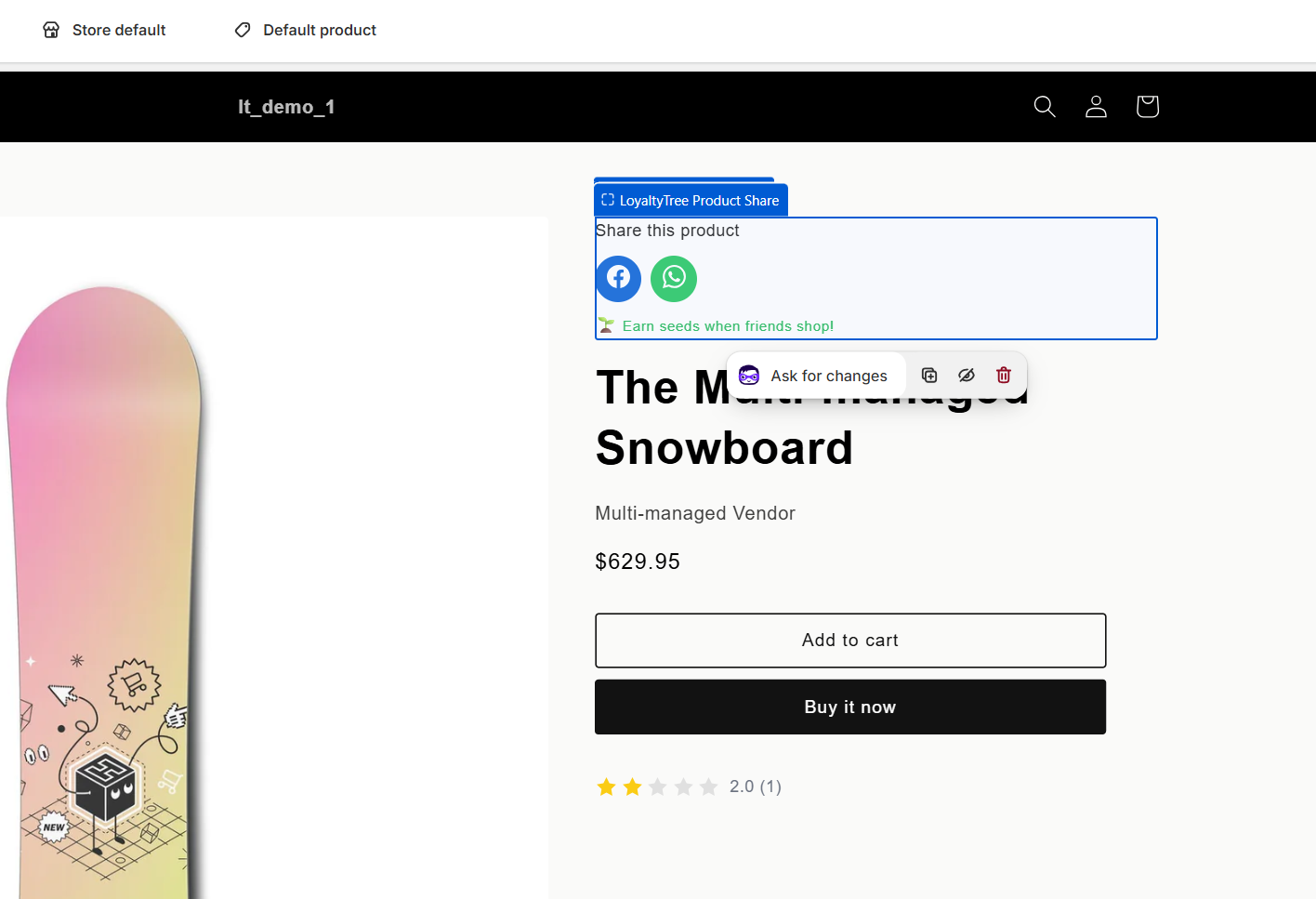
The share widget will display your configured product share channels and show customers they can "Earn seeds when friends shop!"
Step 3: Configure Sharing Rewards (Seeds)
Set up how many seeds customers earn for sharing. Navigate to Loyalty Group → Seed Settings and scroll to the Sharing Rewards section.
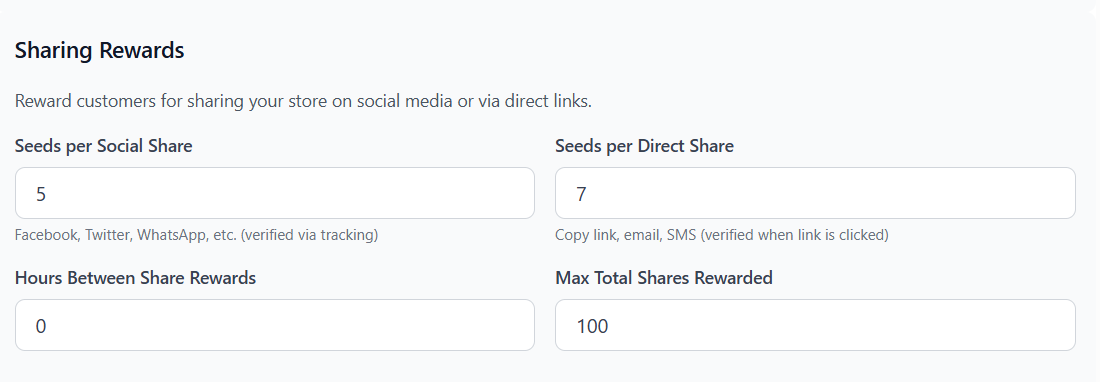
Sharing Rewards Settings:
| Setting | Description |
|---|---|
| Seeds per Social Share | Seeds awarded when customer shares via Facebook, Twitter, WhatsApp, etc. These are verified through our tracking system. |
| Seeds per Direct Share | Seeds awarded for Copy Link, Email, or SMS shares. Verified when someone clicks the shared link. |
| Hours Between Share Rewards | Cooldown period between earning share rewards (prevents abuse). Set to 0 for no limit. |
| Max Total Shares Rewarded | Lifetime cap on how many shares can be rewarded per customer. |
Referral Rewards Settings:
| Setting | Description |
|---|---|
| Seeds for Referrer (on conversion) | Seeds given to the referrer when their referred friend makes a purchase. |
| Seeds for Referred Friend | Welcome bonus seeds for new customers who arrive via referral link. |
| Max Referral Seeds Total | Lifetime cap on referral seeds per customer (prevents abuse). |
Step 4: Monitor Share Tracking Reports
Track all sharing activity from your admin dashboard. Navigate to Customers → Share Tracking to view comprehensive reports.
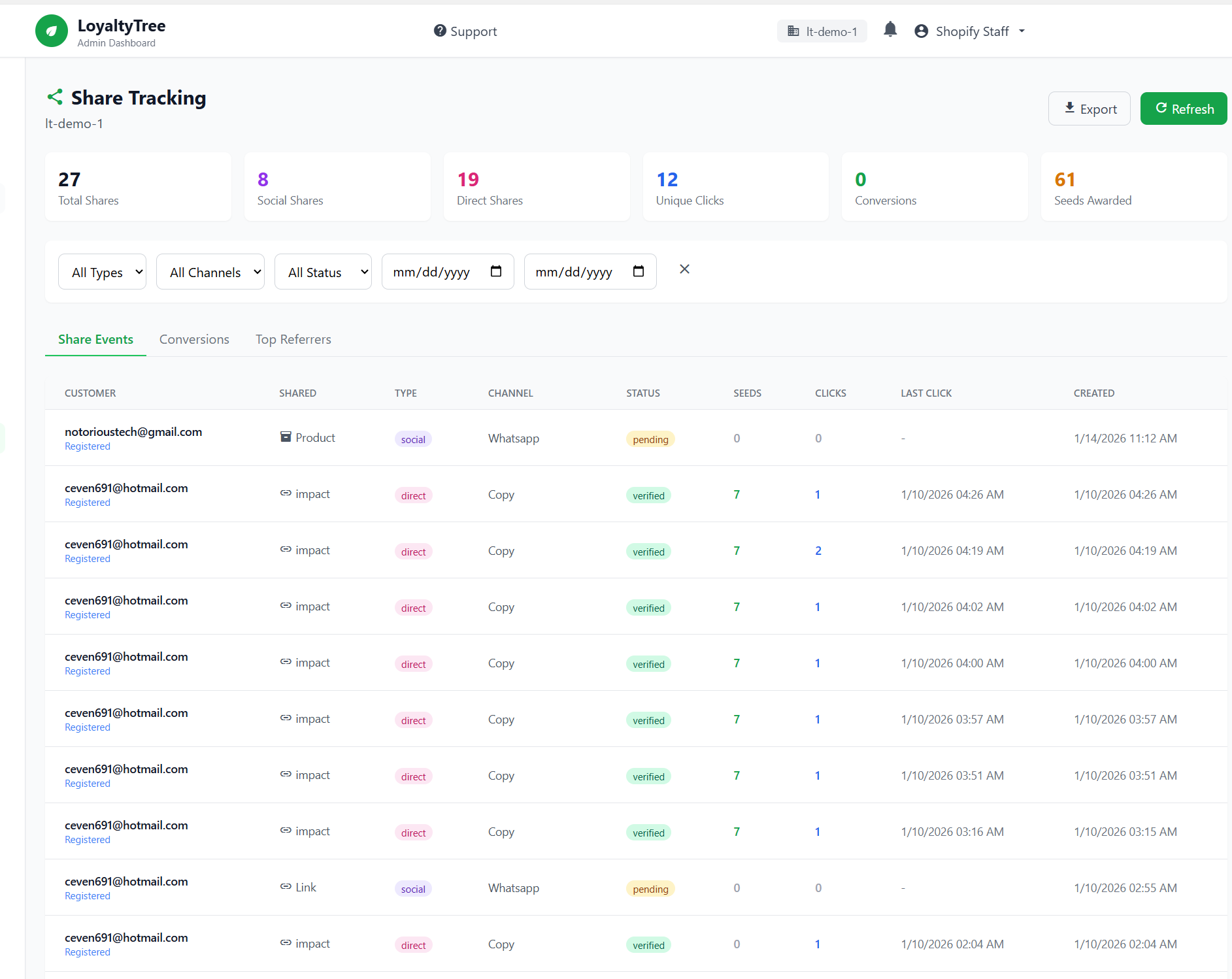
Dashboard Metrics:
- Total Shares: All share events across all channels
- Social Shares: Shares via social media platforms
- Direct Shares: Shares via copy link, email, SMS
- Unique Clicks: Number of unique visitors from shared links
- Conversions: Purchases made from referred visitors
- Seeds Awarded: Total seeds given for sharing activity
Share Events Tab:
View individual share events with details:
- Customer: Who shared (email and registration status)
- Shared: What was shared (Product, Impact page, Link)
- Type: Social or Direct share
- Channel: Facebook, WhatsApp, Copy, Email, etc.
- Status: Pending or Verified (see below)
- Seeds: Seeds awarded for the share
- Clicks: How many people clicked the shared link
- Last Click: When the link was last clicked
Conversions Tab:
Track successful referral conversions - when a shared link leads to a purchase.
Top Referrers Tab:
See your most effective brand ambassadors ranked by shares, clicks, and conversions.
Understanding Share Status: Pending vs Verified
LoyaltyTree uses a validation system to ensure shares are legitimate before awarding seeds:
| Status | Meaning | Seeds Awarded? |
|---|---|---|
| Pending | Share was initiated but not yet validated. Waiting for a click on the shared link. | No - awaiting validation |
| Verified | Share was validated - someone clicked the shared link, confirming it was actually shared. | Yes - seeds awarded |
How Validation Works:
- Customer clicks a share button (e.g., WhatsApp)
- A unique tracking link is generated
- Share event is recorded with Pending status
- When someone clicks the shared link, it's tracked
- Status changes to Verified and seeds are awarded
This system prevents fake sharing - customers only earn seeds when their shares actually reach other people.
Share Types Explained
Social Shares
Shares through social media platforms like Facebook, Twitter/X, WhatsApp, LinkedIn, Pinterest. These open the platform's native share dialog with pre-filled content about your store or product.
Direct Shares
Shares via copy link, email, or SMS. These give customers a tracking link they can share however they want. Particularly useful for:
- Sending personalized messages to friends
- Sharing in private groups or communities
- Platforms not covered by social share buttons
Product vs Store Shares
- Product shares: Share a specific product with tracking
- Impact/Store shares: Share the overall loyalty program or Impact Dashboard
Best Practices
- Balance rewards: Set meaningful seed values that encourage sharing without enabling abuse
- Use cooldown periods: A few hours between share rewards prevents spam
- Monitor top referrers: Your best sharers are potential brand ambassadors
- Track conversions: Focus on referral types that lead to actual purchases
- Keep channels relevant: Choose platforms your customers actually use
Need Help?
Contact our support team at support@loyaltytree.eco for assistance with share and referral configuration.