
Configuring the Store Experience
Learn how to customize the floating launcher, loyalty widget, welcome messages, and theme colors for your store.
Overview
The Store Experience settings allow you to customize how your eco-friendly loyalty program appears to customers on your Shopify storefront. This includes the floating launcher button, the loyalty widget popup, welcome messages, and theme colors.
Accessing the Experience Editor
To customize your store experience:
- Go to your LoyaltyTree admin dashboard
- Navigate to your store settings
- Click on Experience Editor
The Floating Launcher
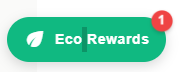
The floating launcher is a button that appears in the corner of your storefront, allowing customers to quickly access their loyalty rewards.
Launcher Templates
Choose from three launcher templates:
- Minimal - Icon only, compact design
- Compact - Icon with program name
- Full - Icon, name, and seed count
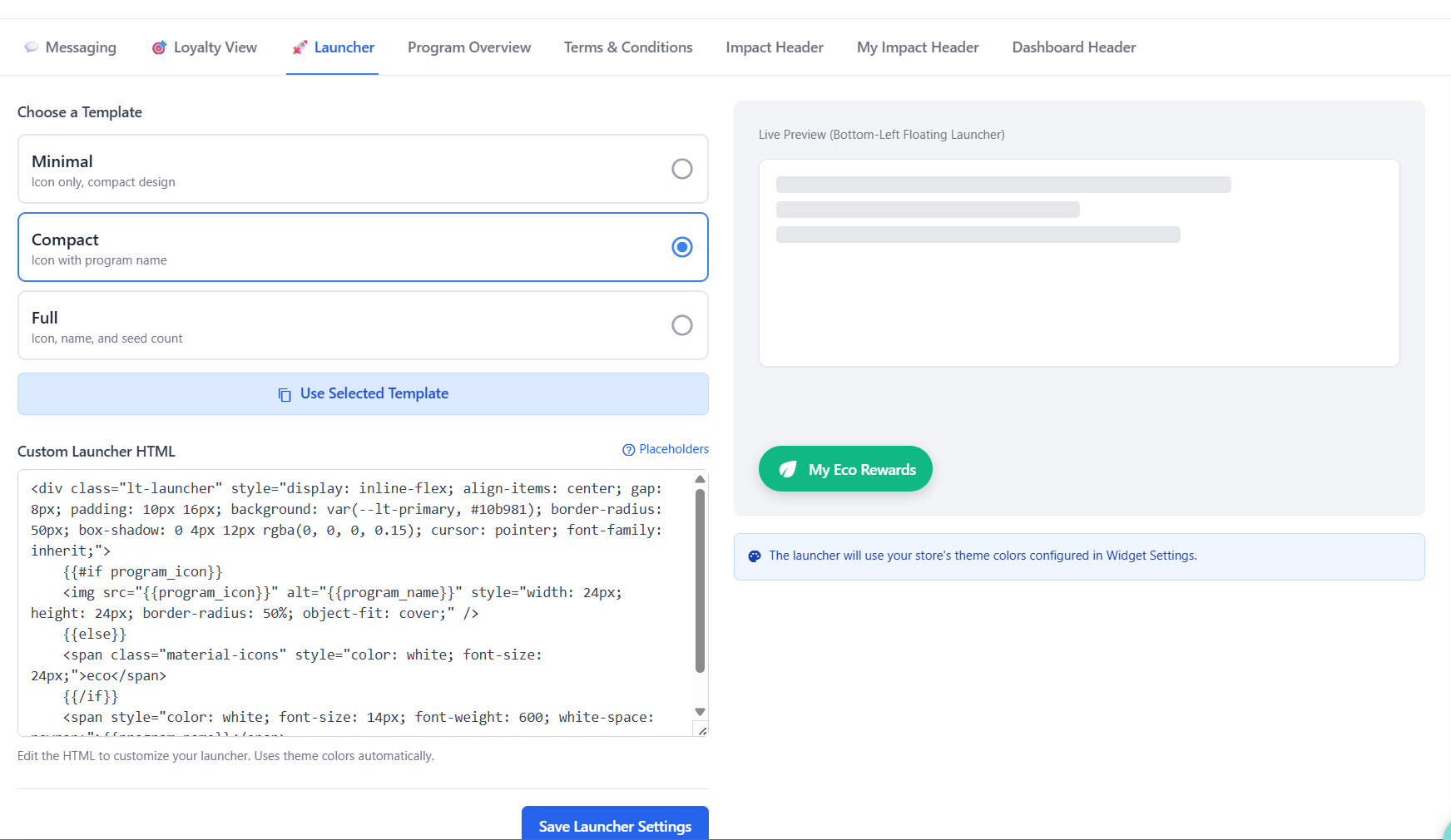
You can also customize the launcher HTML for advanced branding using Handlebars placeholders.
Loyalty Widget Popup
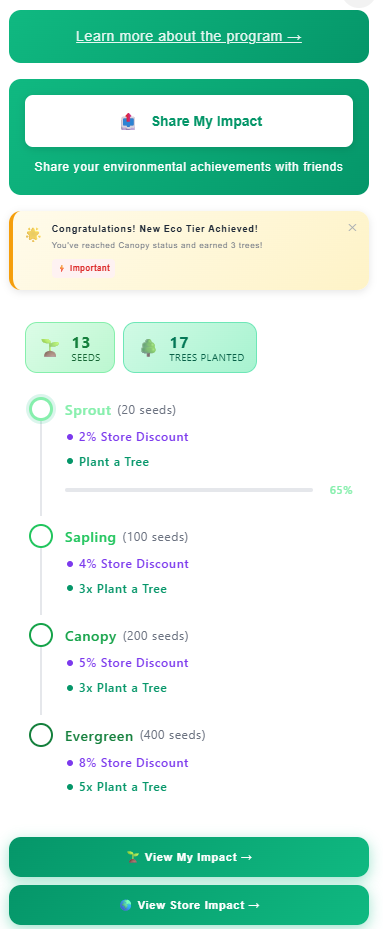
When customers click the launcher, they see the loyalty widget popup showing their rewards progress, eco tiers, and environmental impact.
Loyalty View Templates
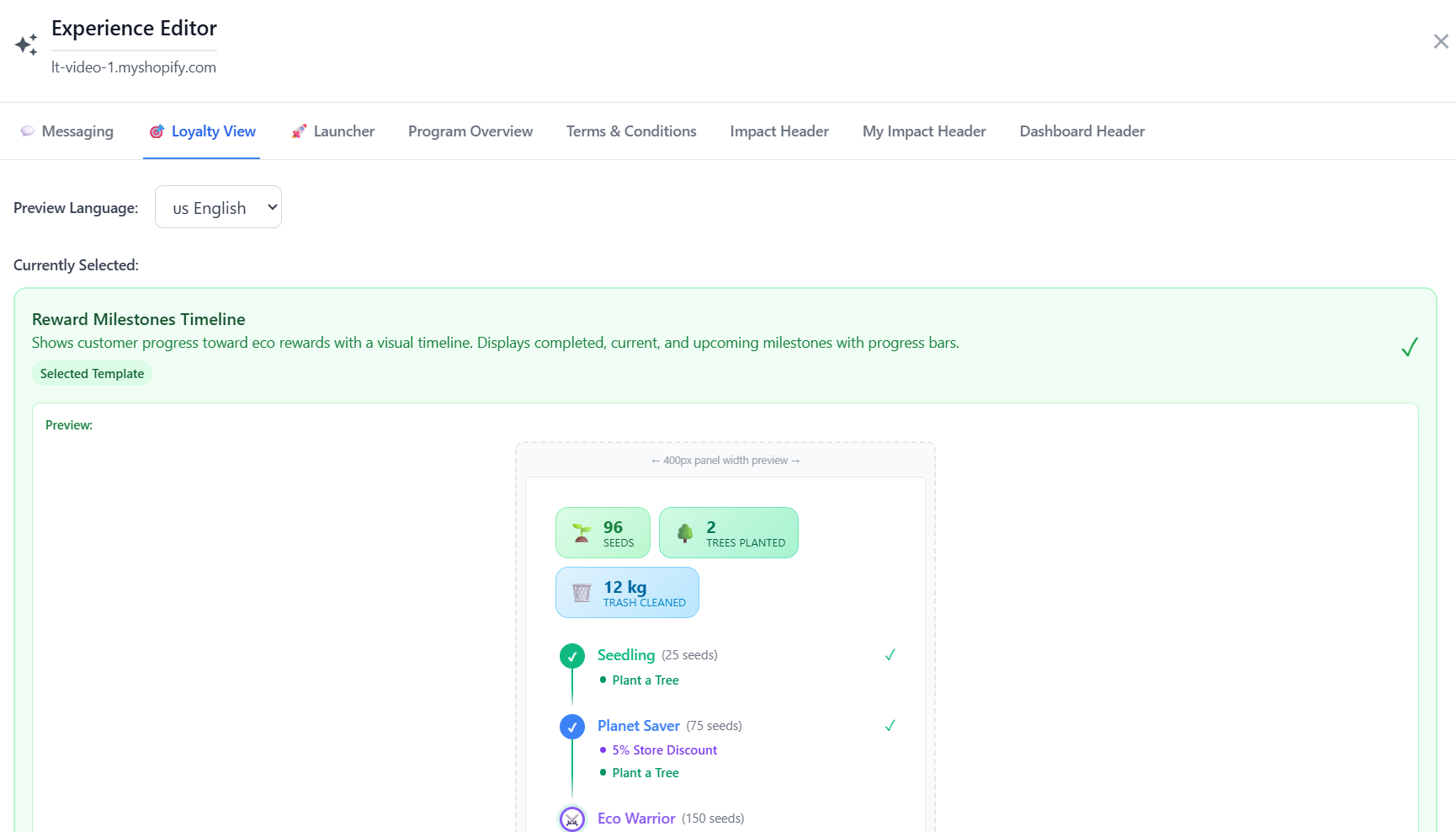
The Loyalty View tab lets you choose how customer progress is displayed:
- Reward Milestones Timeline - Shows progress toward eco rewards with a visual timeline
- Displays completed, current, and upcoming milestones with progress bars
Messaging Settings
The Messaging tab allows you to customize the text and branding shown in the widget:
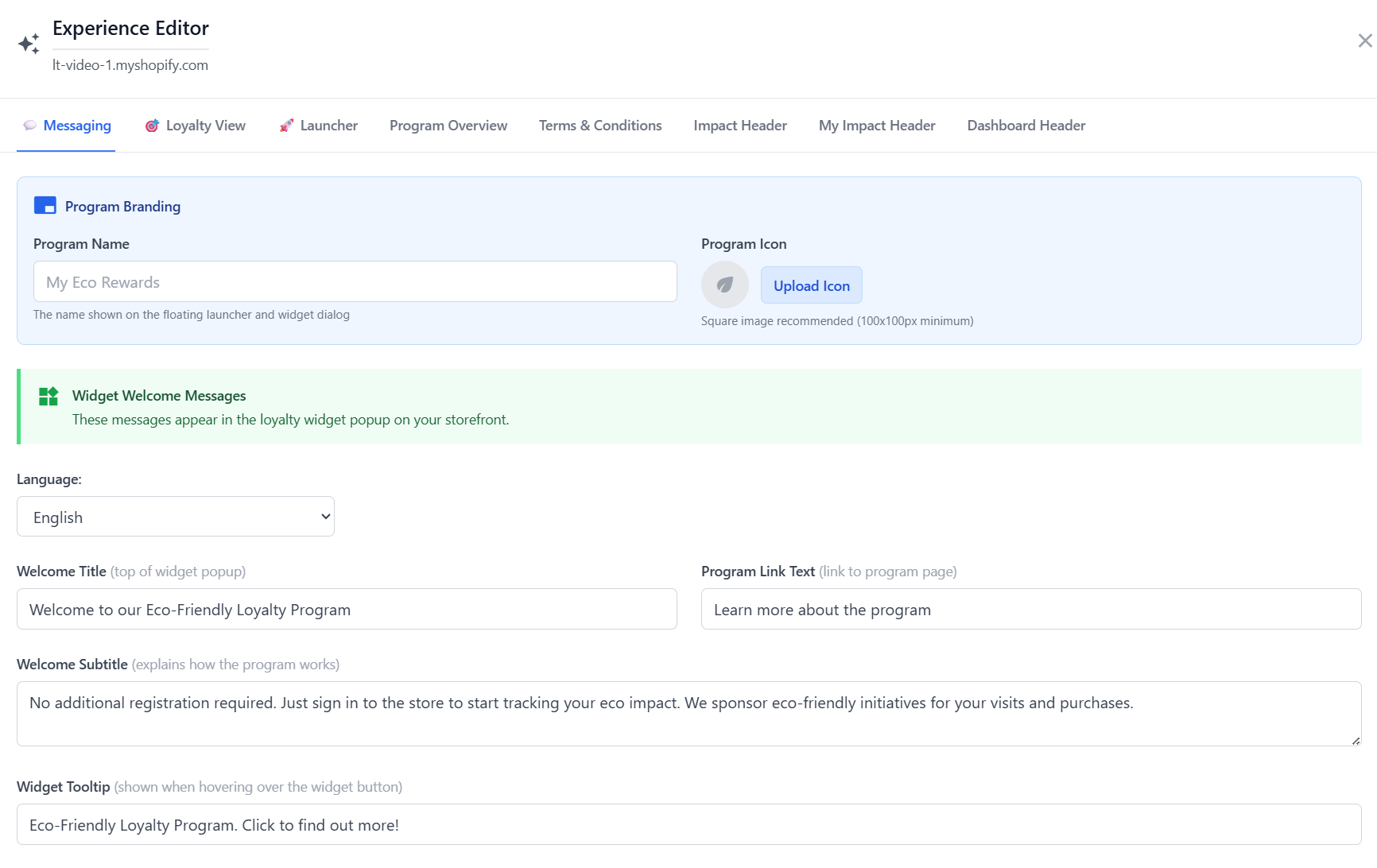
Program Branding
- Program Name - The name shown on the floating launcher and widget dialog (e.g., "My Eco Rewards")
- Program Icon - Upload a custom icon (100x100px minimum recommended)
Widget Welcome Messages
These messages appear in the loyalty widget popup:
- Welcome Title - The main heading (e.g., "Welcome to our Eco-Friendly Loyalty Program")
- Welcome Subtitle - Explains how the program works
- Program Link Text - Text for the link to your program page
- Widget Tooltip - Shown when hovering over the widget button
Widget Theme
Customize the colors and visual style of your loyalty widgets:
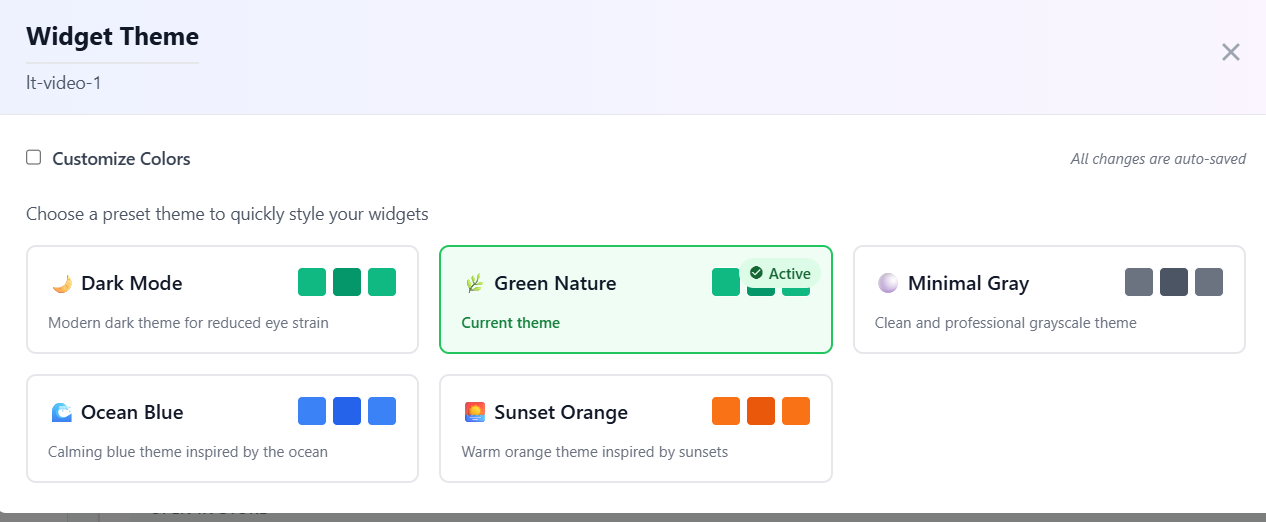
Preset Themes
Choose from preset themes to quickly style your widgets:
- Dark Mode - Modern dark theme for reduced eye strain
- Green Nature - Natural green theme (default)
- Minimal Gray - Clean and professional grayscale theme
- Ocean Blue - Calming blue theme inspired by the ocean
- Sunset Orange - Warm orange theme inspired by sunsets
Custom Colors
Enable "Customize Colors" to manually set your own primary, secondary, and accent colors to match your store brand.
Additional Tabs
The Experience Editor also includes tabs for:
- Program Overview - Content shown on the program information page
- Terms & Conditions - Legal terms for your loyalty program
- Impact Header - Customize the store-wide impact display
- My Impact Header - Customize the customer personal impact display
- Dashboard Header - Customize the loyalty dashboard header
Tips for Best Results
- Use a program name that matches your brand identity
- Choose theme colors that complement your Shopify theme
- Keep welcome messages concise and inviting
- Test the widget on different devices to ensure it looks good on mobile and desktop